Table of contents
- Connect to any device in seconds
- Start or stop P9 Connect
- Remote control a device
- Command-line utility
With P9 Connect, you no longer need tools like TeamViewer, LogMeIn or VNC for remote control access to your machines. P9 Connect is built-in to the already installed Panorama9 Agent and delivers a full-featured remote control solution.
Connect to any device in seconds
Use the built-in P9 Connect from any location to quickly access computers or servers regardless of where they are. Provide remote support or administration as if directly in front of the machine - whether you're in the same building or across the world.

Gone are the days of requesting users' IP addresses and other ID information. With P9 Connect, simply search for the computer or user name and connect with the click of a button.
Features:
- No client install required (included with the Panorama9 Agent)
- Traverse network and connect to machines behind firewalls
- Chat with the user of the machine
- Transfer files and folders
- Multiple sessions to allow more than one technician to connect to the same machine
- Supports mixed-OS environments (Java SDK 8u40 Build b05 or newer required on Apple macOS)
- Multiple monitor support
- Built-in toolbox with handy debugging tools
- Record remote control session for later review
- 256-bit AES session encryption
- Temporary or permanently remote control access
- Require user consent before remote session can be established
Start or stop the P9 Connect client
The P9 Connect client can be started by the desktop user, remotely through the Panorama9 Dashboard or via the Panorama9 API.
Start P9 Connect from an users Desktop
You control the P9 Connect client through the Panorama9 status bar app. Choose the number of minutes or hours the remote control client should run or set it to operate indefinitely.

Remote start P9 Connect on a specific device
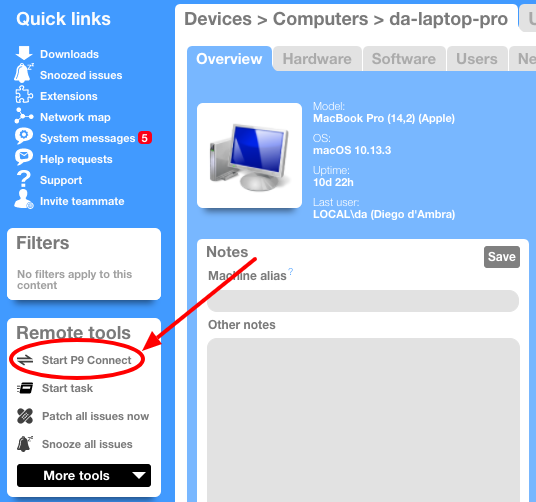
Login to the Panorama9 Dashboard and navigate to the device and click on the "Start P9 Connect" link. Wait for the Panorama9 Agent on the device to notice your request (typically takes less than 1 minute). Once the P9 Connect client is started the "Remote tools" widget will update and include a link to start the remote control session.
Remote start P9 Connect on multiple devices
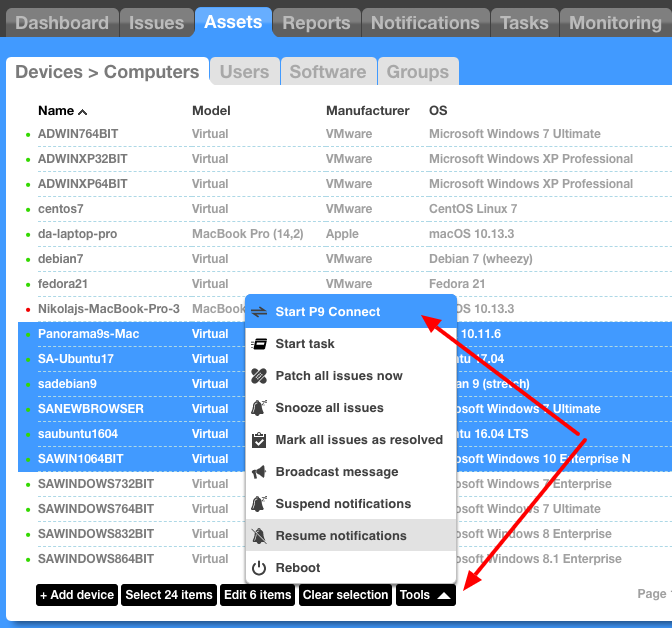
Login to the Panorama9 Dashboard, navigate to the "Assets" tab, then select relevant devices and choose "Start P9 Connect" from the "Tools" menu.
Remote control a device
To begin a remote control session, login to the Panorama9 Dashboard, then navigate to a device and click on the "P9 Connect" link.
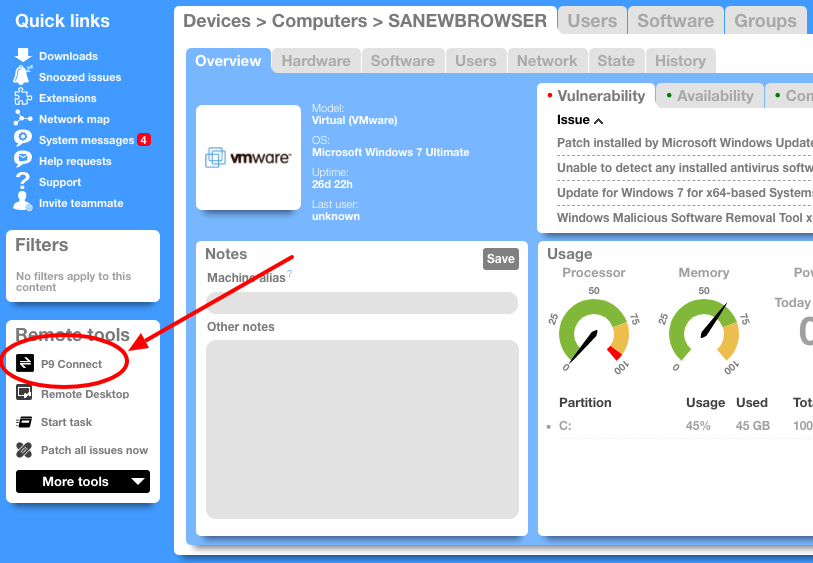
Once you click on the "P9 Connect" link, a binary is generated and automatically downloaded by your browser. To begin the remote control session, run the downloaded binary. There’s no need to pre-install a viewer - everything needed is in the downloaded file.

You can send the downloaded file to others, giving them remote access to the device. After 24 hours (or sooner if P9 Connect is stopped) you're no longer able to use the downloaded file. A new then needs to be generated through the Panorama9 Dashboard.
Command-line utility
You may enable P9 Connect using the operating systems command-line interface, such as batch, bash, etc.
Microsoft Windows
32bit systems
C:\Program Files\Panorama9>p9-connect.exe --start
64bit systems
C:\Program Files (x86)\Panorama9>p9-connect.exe --start
(Note: The "-h" argument lists required and available command line arguments)
Apple macOS
$ p9-connect --start
For more help use 'p9-connect --help'
Another option is to use PsExec to start a remote process and run the P9 Connect command line utility. Running a remote process requires that both the local and remote computer have file and print sharing enabled (the Workstation and Server services) and that the default Admin$ share is defined (a hidden share that maps to the \windows directory) on the remote system. Download the PsExec utility here: http://technet.microsoft.com/en-us/sysinternals/bb897553.aspx
Start P9 Connect (permanent access) using PsExec:
psexec \\COMPUTERNAME -s "%ProgramFiles%\Panorama9\p9-connect.exe" --start
How do I take my currently deployed systems and set them all to "allow indefinitely"? Can I 'default' the client to an indefinite allow if I choose? That would give me the same functionality as something like LogMeIn Free.
Yes please enable a setting to allow us to set the clients to "allow Indefinitely" from the dashboard. I like the idea of the user granting access, but most of my clients prefer I aways have access.
Keep up the great work, you guys are on to something here. I'm so happy to have you at the core of my new MSP.
Hi Guys,
Thanks for the feedback -- we're already building a command-line tool which can be used to tweak access permissions.
Furthermore, we're investigating other options as well.
We've added a command-line tool that can be used to enable the Panorama9 Connect client (allow permanent access). The article above has been updated with instructions.
The Remote Assistance menu item is grayed out / inaccessible on our clients. What are we missing?
IT Director, you have to contact support and have them enable it for your network. Not sure why this isn't in the documentation.
Hi All,
Just wanted to let you know that this feature is now (and has been for a while) enabled per default so you don't have to contact support :-)
FYI, I recently setup a Server 2012 Core instance, and to get P9 Remote Connect working on the Server Core instance I needed to do the following (in powershell):
Just keep in mind you're adding .NET Framework 4.5 to your Server Core instance (some may not like this)
After installing these and restarting the host I am able to connect to the server core instance using P9 connect.
Thanks to Claus (Support) who helped me figure this out and answered some questions.
I believe this will also work with Server 2012 R2, but I have not tested it.
Hi,
When I try "remote connect", the eapp wants to connect to the LAN IP (192.168.x.x). This means I cannot use P9 remote connect to connect from outside the LAN.
What am I doing wrong? How can I connect from internet (WAN)?
@Philppe
When you click the "remote connect" link your browser should download a .exe (Windows) or .jnlp (OSX/Linux). Is that happening?
If not, have you configured your browser to use a proxy?
Still an issue then please send a support ticket to support@panorama9.com
I seem to be having problems with the script above. Does it work on Win10 Pro systems?
Is there a way to make a token permanent? I have a VM for an outside accountant's use. I don't want to have to renew/resend him a token every time he wants to access. Need something always available like logmein/teamviewer. Is this possible with P9 Connect?
Hi,
I will be remote connecting from a mac to windows clients, when I start the remote session I get the token to down load but I have to allow it in system prefs each time to run, how do I set it as a trusted or identified developer?
Hi Justin,
You need to allow this under 'System Preferences' -> 'Security & Privacy' -> 'Allow apps downloaded from' and choose 'Anywhere'
Best regards
Claus Tjoerndal
In Sierra the Anywhere option is disabled a quick google led me to the cmd line to change it :-) thanks for the quick reply
Justin - can you link to this article? Thanks
Hi Steve,
Try this one
http://osxdaily.com/2016/09/27/allow-apps-from-anywhere-macos-gatekeeper/
Best regards
Claus Tjoerndal
After the P9 remote file is downloaded - you can actually just hold down then click on open from the menu. This will allow a single app to bypass the more strict policy without changing it for everything on your computer.
I'm looking for a command structure I can use to permanently enable Remote Assistance on OS X machines. Is this possible for the applet that runs on OS X?
How about giving mac instruction in this article.
We have updated the article so the OS X cmd are now shown, the other steps are the same no matter OS System